
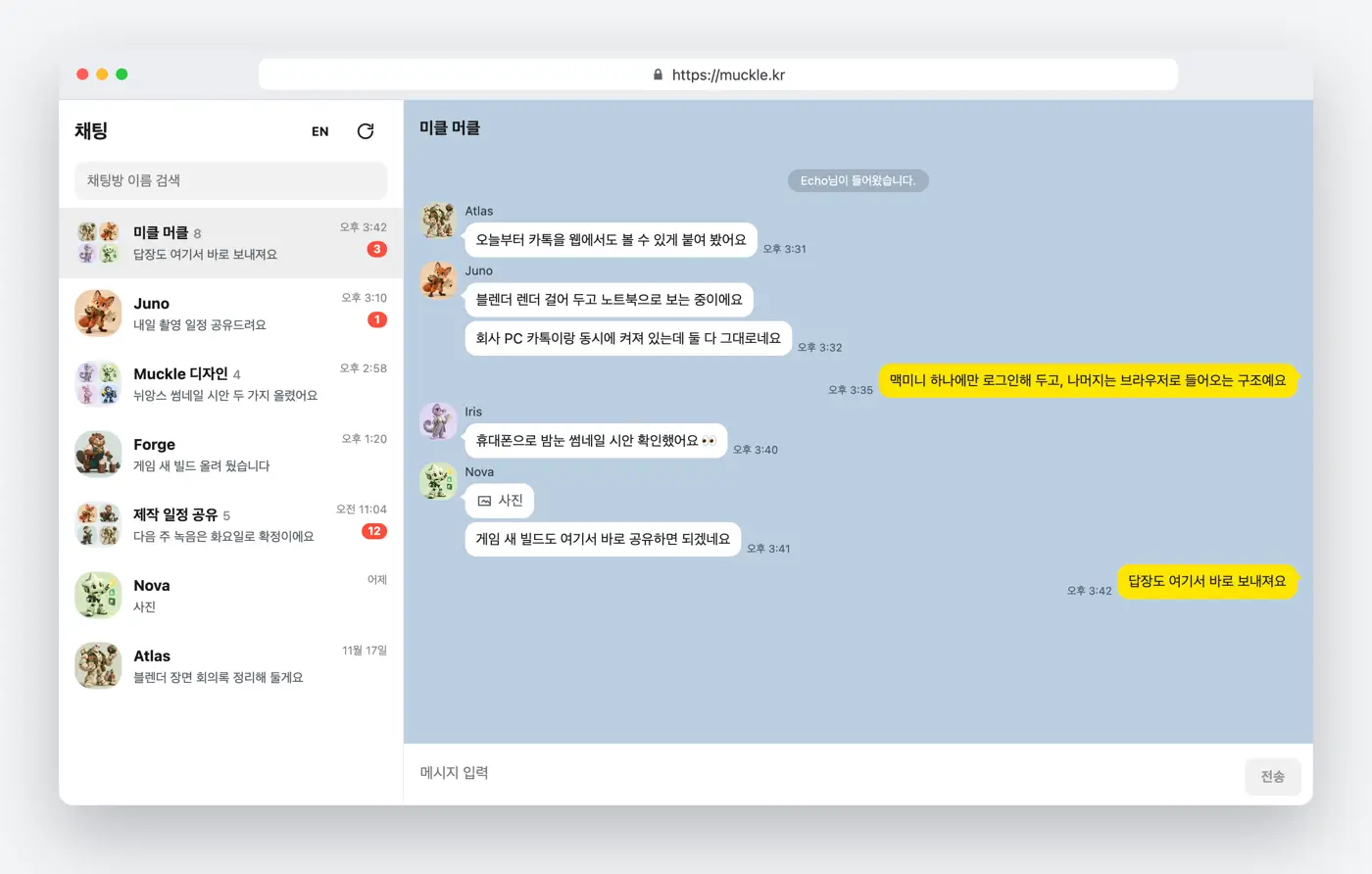
KakaoTalk on PC only lets one computer stay signed in. So we left it signed in on one office Mac mini and built a web version that any browser can open.
Why did we need a web version?
At Muckle, we make songs and games, and we lay out music video scenes in Blender. Each job runs on a different computer, so we change desks a lot.
Sign in to KakaoTalk on another PC and the first one gets signed out. Every desk change meant signing in again and hunting for the group chat we'd just been reading.
Then we got curious: was there anything AI couldn't do? What if KakaoTalk stayed signed in on one machine and every other device connected to it? We decided to build it ourselves. Design, code, testing, all of it with AI.
Two approaches we dropped first
We looked at Kakao's official API first. Its message API is mostly for sending messages, like ones to yourself. It can't read your chat list or past conversations. Kakao message API documentation
The second idea was to install KakaoTalk on a virtual Android device and read its conversations with administrator rights. That means opening protected data directly and pulling in every conversation on the device. We didn't use it.
That left one path: keep the official KakaoTalk PC app running as it is, and have a program read what a person would see on screen and press the buttons a person would press.
KakaoTalk is signed in on one Mac mini only
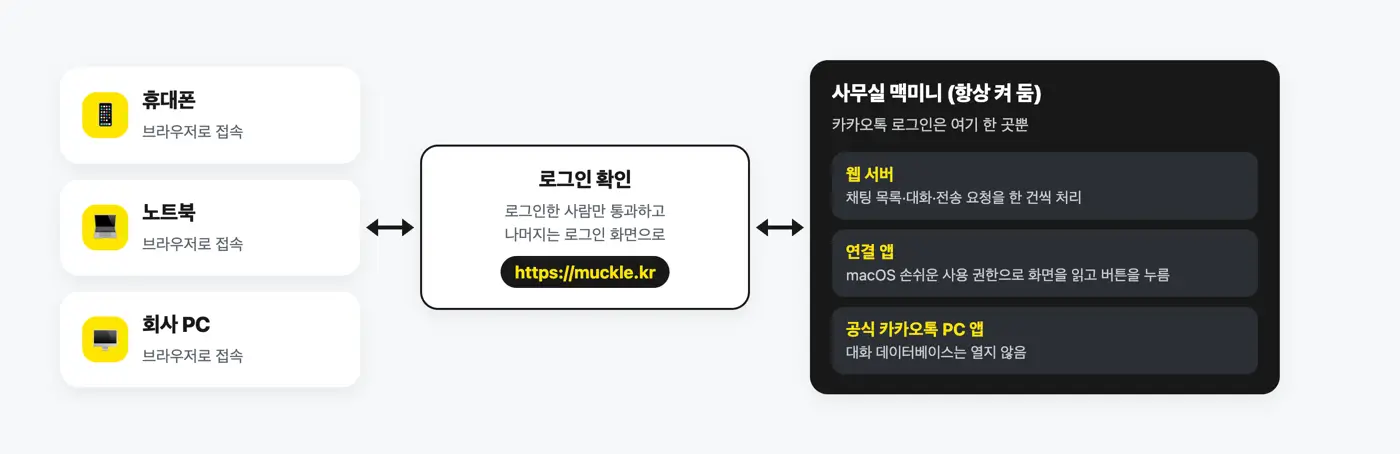
The office Mac mini also handles Blender renders, so it's always on. The official KakaoTalk app is signed in there and nowhere else.
A small bridge app runs on the Mac mini too. With macOS Accessibility permission, it reads the chat list and conversations from the KakaoTalk window, types into the input field and presses the send button. A web server alongside it puts all of that on a web page.
The phone, the laptop and the work PC never sign in to KakaoTalk itself. They open https://muckle.kr and sign in there instead. So several devices can stay connected at once, and none of them signs the others out.
A screen that looks like KakaoTalk
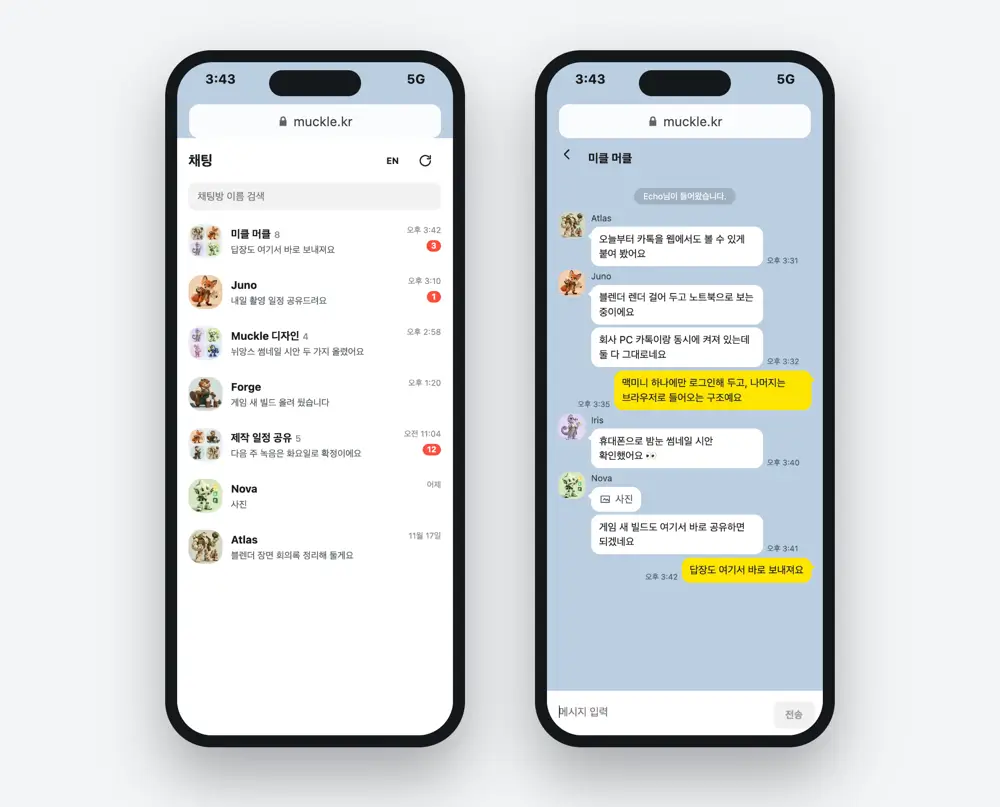
On a wide screen, the chat list sits on the left and the conversation on the right. On a phone, each gets a full screen.
Each room in the list shows its name, member count, last message, time and unread count. Above 300, the count reads "300+", just like in KakaoTalk. Inside a room, the background is light blue, your own messages are yellow bubbles and everyone else's are white. When one person sends several messages in a row, their name and picture appear only once. Muckle's own group chats, like the example chat, hold song thumbnail drafts, game builds and Blender render updates.
Tapping a room in the list opens the same room in KakaoTalk on the Mac mini.
How did we build it?
Three parts
Three programs run together on the Mac mini. The first is the bridge app, written in Swift, which handles the KakaoTalk window: it uses the macOS Accessibility API (AXUIElement) to read and press elements on another app's screen. Next comes the web server, written in Python with only the standard library. Last is the web page, plain HTML, CSS and JavaScript with no framework.
The bridge app and the web server talk only through a Unix socket inside the Mac. Only the Mac user can open the socket file, and the bridge app double-checks that the connecting program runs as that same user.
Reading the KakaoTalk window
Through the Accessibility API, KakaoTalk's chat list and conversations show up as tables. Each row holds text and a time, so the bridge reads every row of a conversation as one message.
The text doesn't say who sent it, so the bridge looks at where the bubble sits. A bubble to the right of the window's center is your own message. One on the left belongs to someone else, and the text just above it becomes the sender's name. A row with only a large image and no text shows up as "Photo". The grey lines in the middle are notices, handled separately.
Asking for each element's name, position and size one by one is slow. So the bridge asks for them all together with AXUIElementCopyMultipleAttributeValues.
Sending a message
Text goes into the input field through the AXSelectedText attribute, and the send button receives the press action (AXPress). No keystrokes are faked. So the text never lands somewhere else, even when another window is in front on the Mac mini.
Every send request from the web carries a number. The web server stores the result for each number in SQLite, so when the same number comes in again, it returns the stored result instead of sending to KakaoTalk a second time. Press the send button twice and the message still goes out once.
Fitting the web page
The web page reloads the open room every 4 seconds and the chat list every 10 seconds. It pauses while the browser tab is hidden, then reloads the moment the tab is visible again.
Korean chat bubbles use word-break: keep-all, so lines never break in the middle of a word. Korean input also fires key events while a character is still being composed, so pressing Enter during composition (isComposing) doesn't send the message.
Where we got stuck
We could not find the self chat
We connected a chat with just ourselves first, so no test message could reach anyone else. But the bridge app couldn't find the room.
Turns out KakaoTalk for Mac titles the self-chat window with my profile name, not "My chat". The bridge connected only after we switched to finding rooms by window title.
The text went in, but the send button stayed off
When we put text straight into the input field, the letters showed up on screen. But KakaoTalk didn't treat it as typing, so the send button stayed disabled.
The button finally turned on once we entered the text the way a person would type it.
It was sent, but it said it failed
When the send button is pressed, KakaoTalk doesn't respond until it has finished the job. That response came later than the 0.25 seconds the bridge app waits, so messages that had already gone out were logged as failures.
So we changed what counts as success. If the sent text shows up at the end of the conversation, it's "sent". If the bridge stops before pressing the button because the room isn't open or there's a draft in the input field, it's "not sent". And if the button was pressed but we couldn't see the result, it's "unconfirmed". Those are never resent automatically, so the same message can't go out twice.
The menu that opens a room would not open
To open a room chosen on the web, we select "Open chat room" from the right-click menu in the KakaoTalk chat list. But when another app was in front on the Mac mini, the menu wouldn't open.
Now KakaoTalk comes to the front briefly while a room opens, and then the previous app returns. If a room is outside the visible list, the bridge scrolls down to that row before opening the menu. It only ever picks "Open chat room" from that menu, and items like "Leave chat room" are blocked.
The permission reset every time we rebuilt
Every time we fixed something and rebuilt the bridge app, macOS treated it as a new app and withdrew its Accessibility permission. Each time, we had to switch the setting back on at the Mac mini.
Signing the bridge app with a developer certificate fixed it. The permission has survived many rebuilds since.
Loading the list and sending both take under one second
At first, reading 15 of the 37 chat rooms took 4 seconds. The bridge asked for the name, position and size of every screen element one question at a time, room by room. Batching them into one request helped, but reading the whole list still took 1.4 to 2 seconds.
KakaoTalk moves a room to the top when a new message arrives, so we reread the top 12 rooms often and the whole list every 30 seconds. Reading those 12 takes 0.03 to 0.14 seconds. The web version shows whatever was read last, right away.
Sending got faster the same way. Instead of searching the whole chat window for the input field and the send button every time, the bridge now finds them once and remembers them. To confirm the message appeared, it checks only the last few lines of the conversation.
These times were measured from a laptop browser.
- Loading the chat list: 0.03 to 0.44 seconds
- Reading a conversation: 0.09 to 0.23 seconds
- Sending (until "sent" is confirmed): 0.53 to 0.58 seconds
Is it safe to access from outside?
This puts a personal KakaoTalk account on the internet, so sign-in had to come first. Until you sign in, every address leads to the sign-in page.
Nobody can reach the Mac mini's web server directly from outside. Instead, the Mac mini opens an SSH connection to the company server, and nginx there checks the sign-in session on every request and passes only approved ones through that connection. It also adds a shared value, known only to the server, as a header. The Mac mini's web server refuses any request without it. Sign-in cookies never reach the Mac mini.
This path keeps no server access logs, and room names travel in the request body rather than the address. The server doesn't store message text. For each send, it keeps only the request number and the result. Before going public we ran a separate security review and fixed what it flagged: the connection method and the conditions for opening rooms.
How we use it now
Right now the same KakaoTalk account is open on a laptop, in two browser tabs, and on Android and iOS phones, all at once. Send a message from one and it shows up on the others right away.
Changing desks no longer means signing in to KakaoTalk again. It stays signed in on the Mac mini, so all you need on any device is a browser.
Listen to Muckle's songs too
Muckle makes songs, games and Blender videos, and builds tools like this one when the need comes up. Next time you check a group chat on the web version, play one of Muckle's songs while you're at it.